
Latin America. Blackmagic Design introduced new features for Blackmagic Cloud. These include a thumbnail clip view that allows you to appreciate the recorded material, as well as a new panel to check clip metadata with ease.
You can also share a presentation with a non-Blackmagic Cloud customer using a URL, making it easy to collaborate and have group conversations. These tools are already available on cloud.blackmagicdesign.com, and those who are already users of the platform will have immediate access to them.
The app offers an innovative thumbnail clip view that can be selected in the upper right corner of the window. This allows you to view the multimedia files in the form of thumbnails and the recorded images by moving the pointer over them. When you return to list mode, the icons reflect the contents of the clips. This gives you the ability to check your content from Blackmagic Cloud.
Most of the files have already been converted into thumbnails, although some of them are still being processed, which will be completed in the coming days. Blackmagic Cloud supports the generation of thumbnails from a variety of common media file formats. Any that are not yet supported will be represented by generic icons.
In addition, Blackmagic Cloud now includes a new pane for metadata on the right side of the Storage application window. By clicking on the information icon in the upper right corner, it is possible to open a tab to view the metadata of the selected clip. You can also hover the pointer over images, making it easier to select clips in list mode.
A new feature in Blackmagic Cloud Presentations allows you to invite customers to a presentation using a URL. Simply copy and paste it into an email and then send it to the person who is not part of the platform. This allows you to quickly share a presentation with a client to collaborate with ease and even have a group conversation with them.
The Blackmagic Cloud login page is available in English, Chinese, French, German, Italian, Japanese, Korean, Polish, Portuguese, Spanish, Turkish and Ukrainian. Blackmagic Cloud allows you to share DaVinci Resolve content with professionals around the world, so you can collaborate with top editors, colorists, visual effects artists, and sound engineers.
The secret of this tool is the ability of the latest Blackmagic Design cameras, such as the Cinema Camera 6K, PYXIS, URSA Cine and URSA Broadcast G2 models, to record Full HD proxy files in H.264 format. Images are instantly synced to the Blackmagic Cloud during filming, while also being saved to all DaVinci Resolve workstations connected to the same project in the cloud. The cinematographer only needs to access the project, which can be viewed in the camera's user interface. All this is done automatically.
From the camera, the user must access Blackmagic Cloud and select a DaVinci Resolve project before recording to start syncing on connected computers. This allows both editors and colorists to start working on the material instantly. In addition, if there are multiple cameras recording at once, thanks to the new multi-sync tool, all clips will be displayed in a multi-view window, and editors will be able to select the most suitable angle.
This is similar to streaming the live footage to an editing program. When you start playback, it will never stop as long as you continue to sync files in the viewfinder, just in front of the head. The playback indicator will recede as each clip segment loads, and its duration will continue to increase.
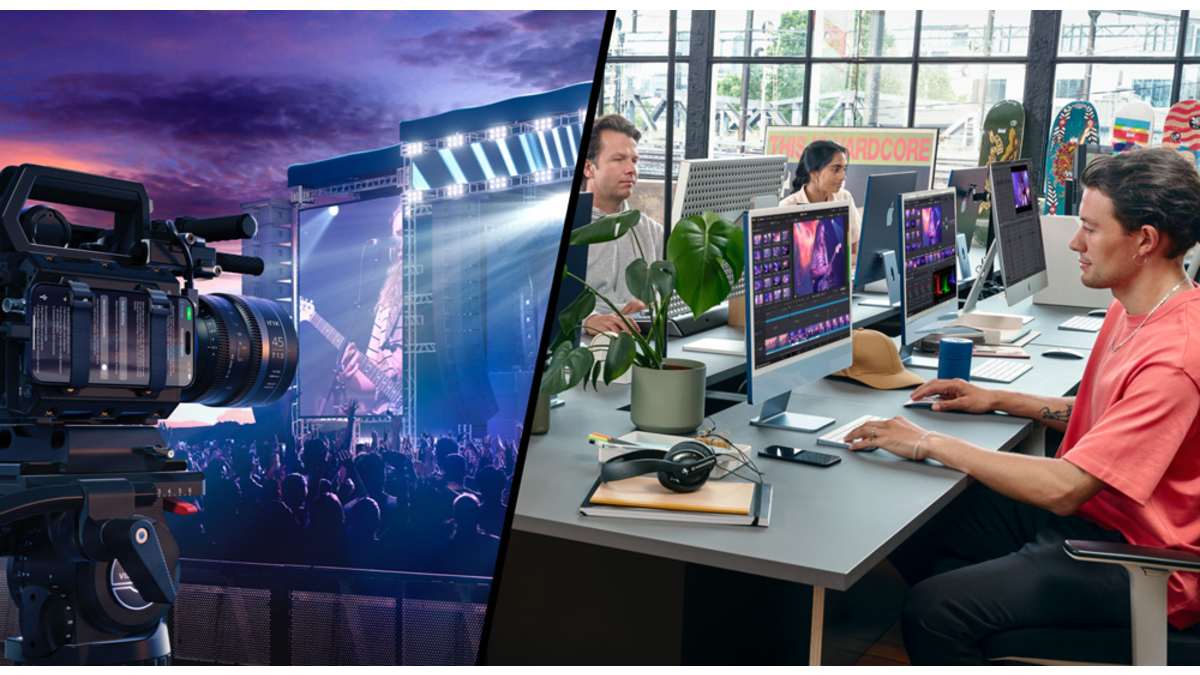
Also, the paperclip icon in the tray will display a red recording indicator, implying that the remote camera is still filming. As a result, when a camera starts shooting a scene, it is possible to start editing and grading from one computer with DaVinci Resolve at the same time, and these settings can then be viewed on set from another computer with the program installed as soon as recording is stopped. This eliminates the need for complex color grading systems on set, as post-production can take care of this aspect using a large DaVinci Resolve panel and monitor color adjustments accurately. DaVinci Resolve can also be used in the production studio to play back graded shots after they have been completed.
In this way, both recording and post-production can be carried out simultaneously. Likewise, in the case of news production, a camera, for example the URSA Broadcast G2 model, will be able to start recording and synchronize the material with the editing system instantly in the event of a historical event. The editor will not have to wait for the recording to stop, as they will be able to start editing the news segment when shooting begins, and the footage will be ready to air in moments.
If you want to broadcast while recording, simply step back a few seconds in the DaVinci Resolve viewfinder and press the play button. The images will play back as they come in, similar to live streams. In this case, DaVinci Resolve acts as both a set-top box and a content player.
New features for Blackmagic Cloud are now available for free.